Cast to Sonos guides
Choose Warm and return to Flat
Android · Cast to Sonos 1.3.0 · November 12, 2026
Watch the matching sound-preset walkthrough
A preset gives you a starting point for the equalizer. This guide follows the visible controls and values; it is not an audible comparison of the speaker output. Red outlines mark the controls or values discussed.
Open the Sound settings
From the home screen, open Settings, then Sound. Under Ten-band equalizer, tap Choose a sound preset.
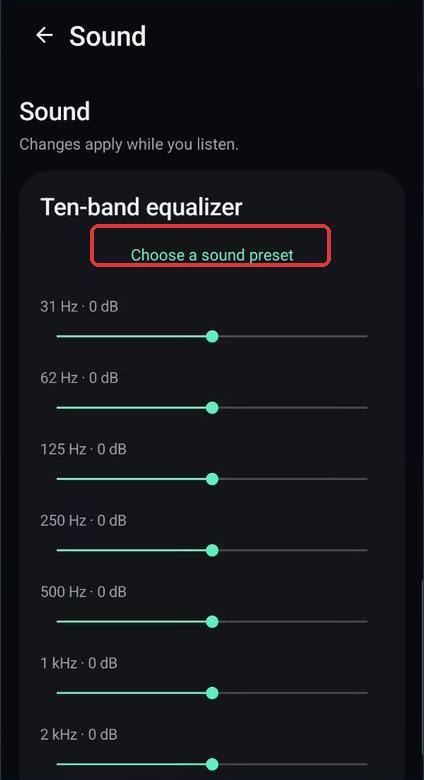 Open the preset menu from the Sound screen.
Choose Warm
The menu offers Flat, Warm, Voice, Night, Bass and Acoustic. Tap Warm to close the menu and apply its equalizer settings.
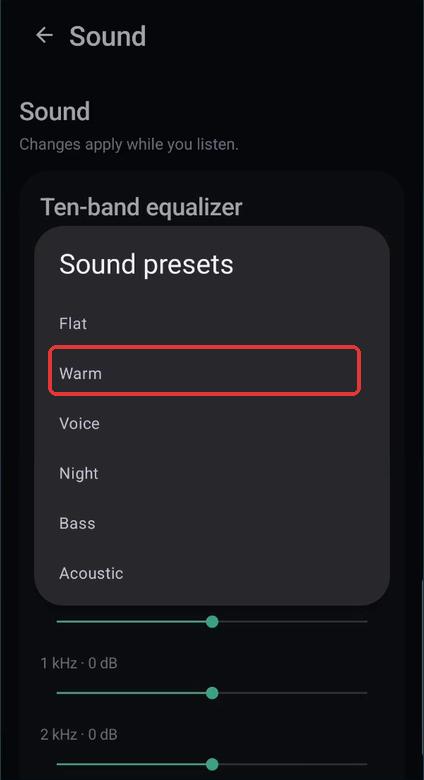 Warm is one of the named presets.
Inspect the changed values
Look at the frequency labels and decibel values beside the bands. The visible sliders move to the Warm settings. Use these values to see what changed in the app.
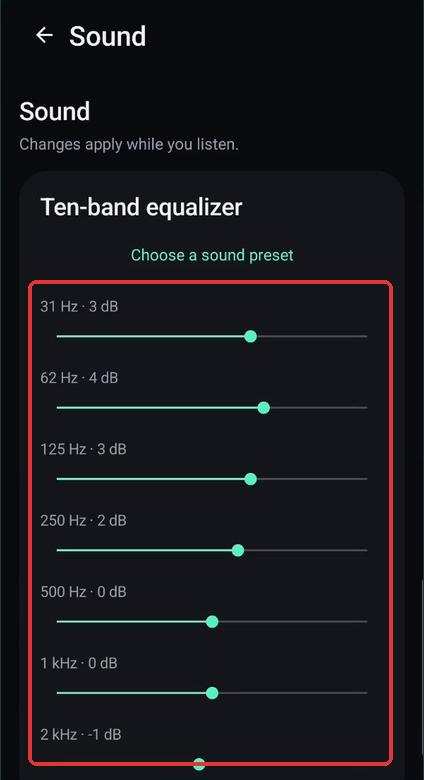 The equalizer shows the selected preset settings.
Restore Flat
Open Choose a sound preset again and select Flat. The visible bands return to zero decibels, providing a neutral starting point for further adjustment.
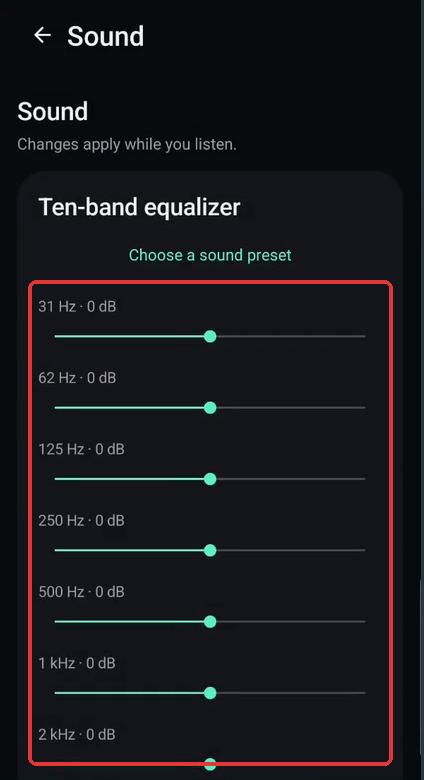 Flat restores the visible bands to zero.
Cast to Sonos is an independent Urmiaworks app, unaffiliated with Sonos.