Getting started with Phone Mic
Watch the walkthrough on YouTube
Android · Version 1.1.1 preview
Use Live to select your output and adjust levels, Sound to choose a voice, and Tools for sound cues and spoken announcements. Each red outline marks the control discussed below.
Check the output on Live
On Live, read the connected output above the microphone controls. In this example it says Automatic external speaker. The Start microphone button is below the input level display.
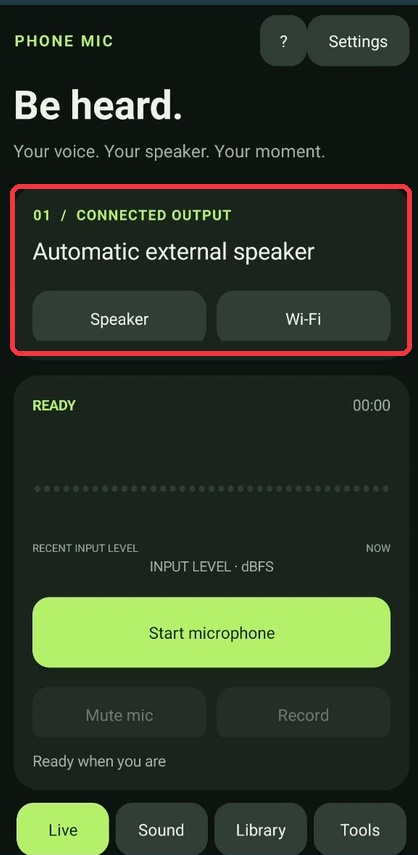 The connected output on the Live screen.
Set the microphone and output levels
Microphone boost adjusts the input. Output adjusts the playback level. Start with a low output and raise it gradually for your setup.
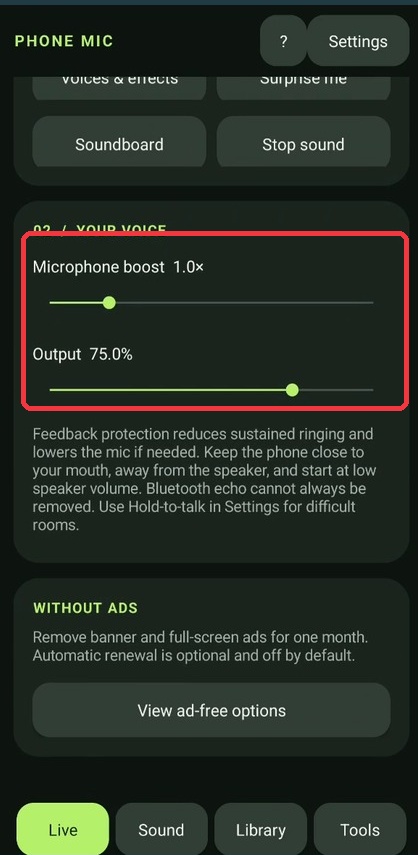 Microphone boost and Output have separate sliders.
Choose a voice in Sound
Open Sound. Select Natural voice for an unaltered starting point, or choose an effect and move Effect strength to adjust it.
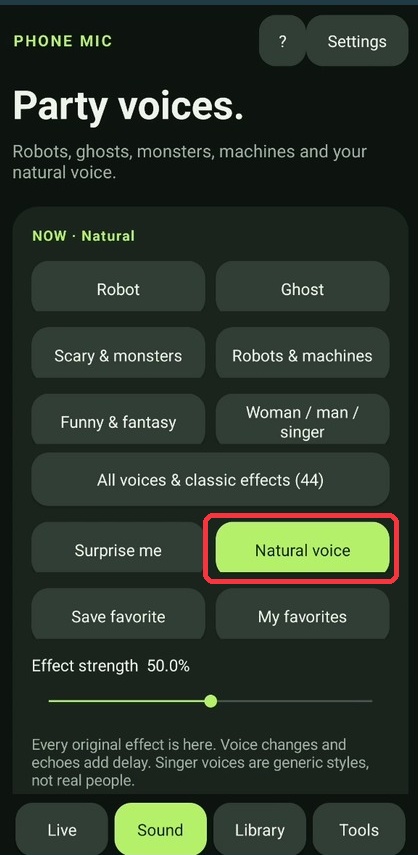 Natural voice is selected in the effects list.
Play a short cue in Tools
Open Tools to find the soundboard. Choose a cue, use Party pad volume to adjust its level, and tap Stop party sound to end the cue.
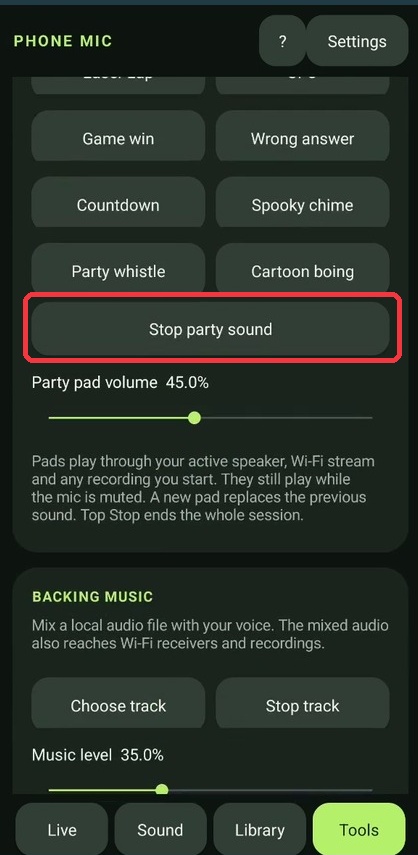 Stop party sound appears below the cue buttons.
Prepare a spoken announcement
In Tools, type a short message. Choose voice selects an installed voice. Use Speak through connected output to read the message aloud.
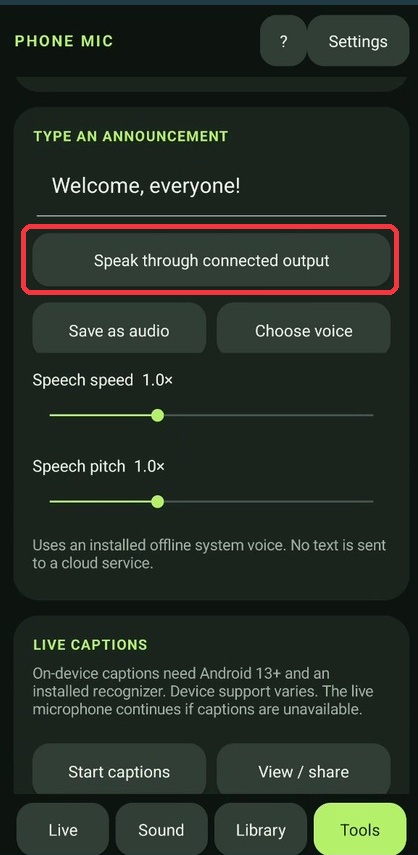 Speak through connected output appears under the announcement text.